Node.js
How to deploy a Node.js app on AwanCerah Web Hosting
Run Express, Fastify, or NestJS on AwanCerah Web Hosting with Setup Node.js App. Pick a Node.js version, bring your code in with Git or File Manager, run npm install, and serve the app on your domain with SSL.
AwanCerah Web Hosting is not only for PHP sites. With Setup Node.js App, your Node.js app keeps running as its own process on the server, within your plan's CPU and RAM limits. Your domain or a path is routed to the app, with SSL and WebSocket support.
We tested the steps in this guide with an Express app built from scratch and a sample app cloned from GitHub, until both loaded over HTTPS.
What you need
- Web Hosting on the Kecil plan or higher. Kecil includes 1 app, Sedang 3, and Besar 5. The count is shared across Node.js, Python, and Ruby. On the Mikro plan, Setup Node.js App is shown locked. Upgrade in Plan & Settings.
- A domain that points to your hosting with SSL active. See the Web Hosting guide. To try things first, you can use the hosting's temporary address.
- App code that reads its port from
process.env.PORT.
Make your code read PORT
The server tells your app which port to use through the PORT environment variable, and sets NODE_ENV to production. Do not hard-code a port such as 3000.
const express = require('express');

const app = express();
const port = process.env.PORT || 3000;

app.get('/', (req, res) => {
  res.send('Hello from Express on AwanCerah!');
});

app.listen(port, '127.0.0.1', () => {
  console.log(`App listening on port ${port}`);
});
Listening on 127.0.0.1 is enough. Requests from the internet arrive at the hosting web server, which forwards them to your app's port.
Create the app
- On the hosting dashboard, open Setup Node.js App in the Software group.
- Click Create app.
- Pick a Version, for example Node.js 22.
- Fill in the App folder, for example
myshop. The code lives inapps/myshop, outsidepublic_html, so files such as.envcannot be opened from a browser. - Pick a Domain and fill in the URL path. Use
/to serve the whole domain from the app, or a path such as/apito keep a PHP or WordPress site at the root. - Set the Startup file to the file to run, for example
app.js,server.js, ordist/main.js. - Click Create app.
If the folder is empty, it gets a sample app. Click Open on the app card and you will see "It works!" with the Node.js version.
Want a subdomain such as api.yourshop.com? Add it first in Domains with Add domain, point its DNS, then pick that subdomain in the Domain field. The Kecil plan includes 3 domains.
Bring in your code
Choose one of these options.
From Git, before creating the app. Open Terminal in the Advanced group, set the Working folder to apps, and run:
git clone https://github.com/your-account/myshop.git myshopThen create the app with myshop as the App folder. A folder that already has files does not get the sample app. For a private repository, use a GitHub fine-grained personal access token that can only read that repository, for example https://TOKEN@github.com/your-account/myshop.git.
Upload from your computer. Zip the project without the node_modules folder. In File Manager, open apps/myshop, delete the sample file, upload the .zip file, and extract it. For projects above 50 MB, use SFTP.
Start from the sample. Create the app with a new folder, edit app.js in File Manager, then install the packages you need as in the next step.
Install dependencies and restart
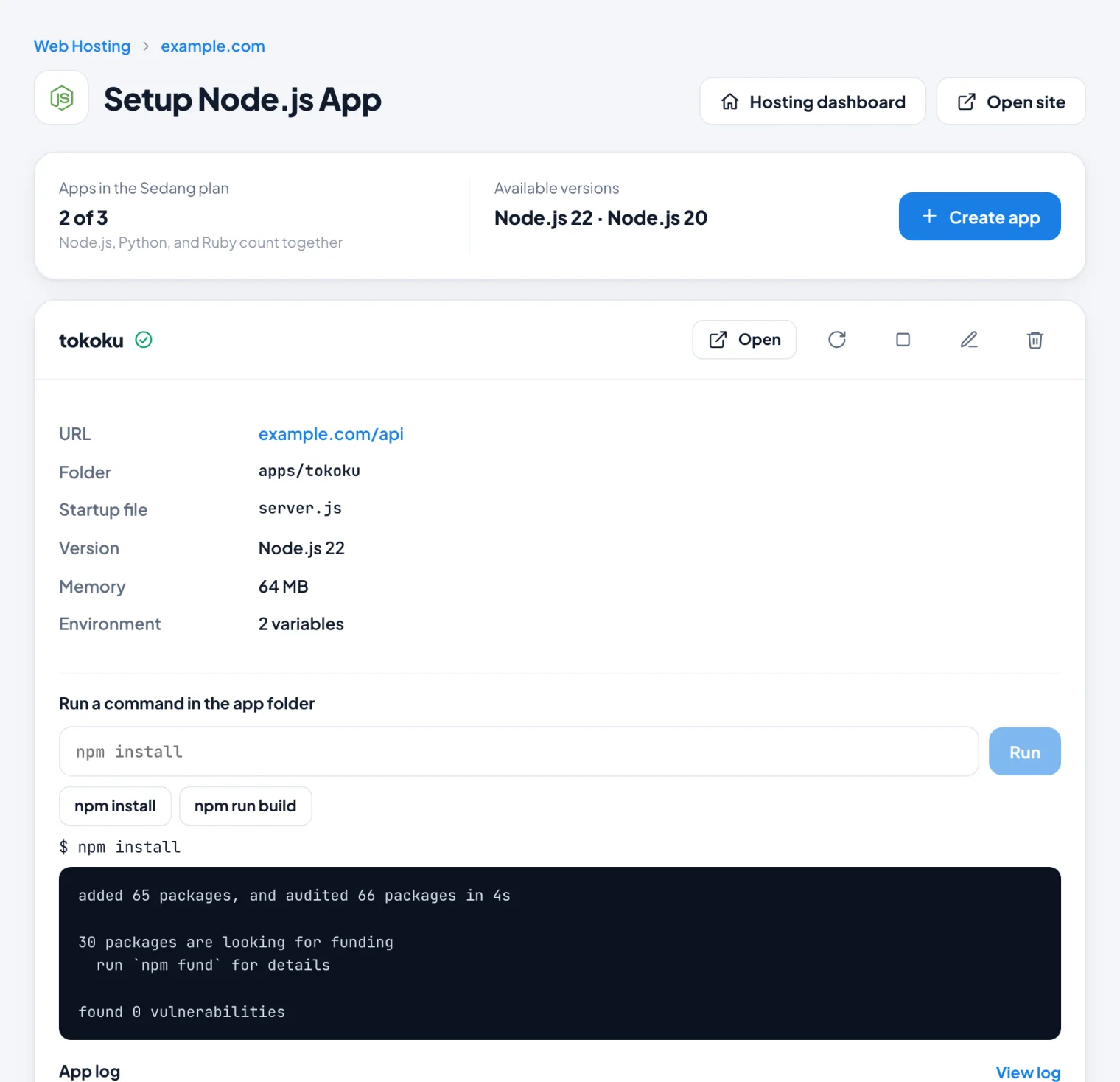
Each app card has a Run a command in the app folder box. Commands run in the app folder with the Node.js version you picked.
- Click the npm install button, or type a command and click Run, for example
npm install express. - If the project needs a build step, click npm run build.
- Click the Restart icon on the app card so the new code is used.
- Click Open to see the result.
Available commands: node, npm, npx, and git. Commands run without interactive input and stop automatically after 15 minutes. In our test, npm install express finished in about 5 seconds.
Environment variables
Keep settings such as a database URL or an API key in environment variables, not in your code.
- Click the Edit icon on the app card.
- Under Environment variables, click Add and fill in the name and value, for example
DATABASE_URL. - Click Save. The app restarts with the new value.
Read the value with process.env.DATABASE_URL. PORT and HOST are set by the server and cannot be changed.
Connect to a database
Create a MariaDB database in Databases, then connect from your app with host localhost and port 3306. For example, with the mysql2 package:
const mysql = require('mysql2/promise');

const db = mysql.createPool(process.env.DATABASE_URL);
Set DATABASE_URL to mysql://user:password@localhost:3306/database_name.
Logs and automatic restarts
- Click View logs on the app card to see the last 200 lines of
console.logoutput, errors, and start and stop entries. - An app that crashes is restarted automatically. If it keeps failing, the card shows Not running. Fix the cause using the log, then click Restart.
- Memory usage is shown on the card. Apps share the plan's CPU and RAM with PHP and other processes in your account.
- The Stop icon turns the app off for a while. While it is stopped, its address shows a 503 page.
Updating your app
For code from Git, run git pull in the app's command box, then npm install if dependencies changed, and click Restart. For code from your computer, upload the changed files with File Manager or SFTP, then restart.
Apps on a path other than /
When the URL path is set, for example /api, the app receives the full path such as /api/products. The server sets the APP_BASE_PATH environment variable to that path, so routes can be written like this:
const base = process.env.APP_BASE_PATH || '';

app.get(base + '/', (req, res) => res.send('Hello'));
app.get(base + '/products', (req, res) => res.json([]));
Tips
- WebSocket, for example Socket.IO, works without extra settings.
- The
appsfolder is included in the daily backup,node_modulestoo. - Run memory-hungry builds on your own computer, then upload the build output.
- Deleting an app in the console does not delete the files in its folder.
- Need more than 5 apps or root access? Use Cloud VPS.
Run your Node.js app
Setup Node.js App is available from the Kecil plan at Rp35.000 a month, with SSL, email, and daily backups included.
Still have a question?
Our team can help through live chat, email or WhatsApp.
Chat on WhatsApp support@awancerah.cloud